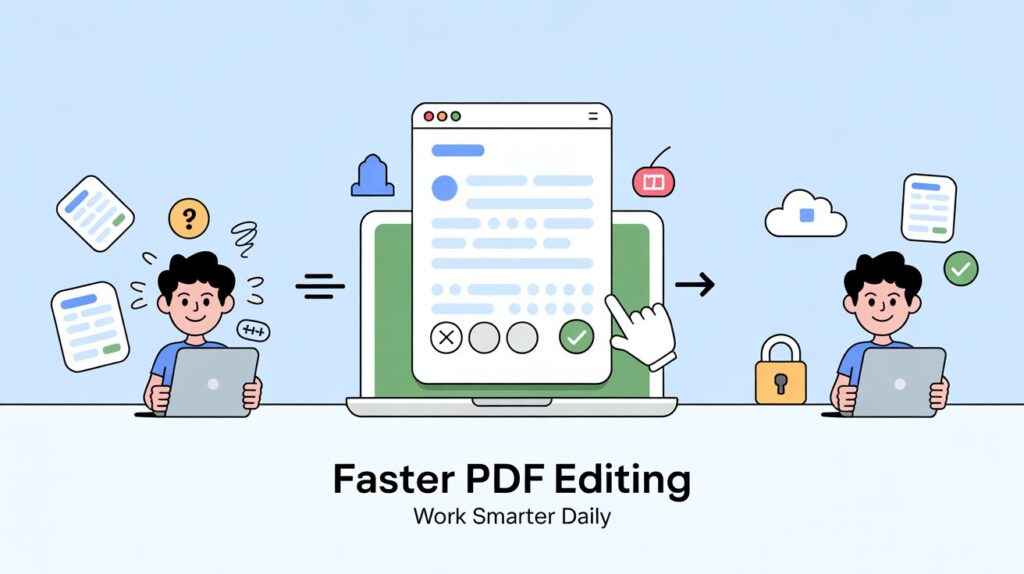
PDFs show up everywhere, from tax filings to job applications to client onboarding packets. They are the default format for collecting and sharing structured information. But editing or filling them out can feel like a chore without the right tool in place. A good form editor should remove that friction, not add to it. This article looks at the specific qualities that make a PDF form tool genuinely useful for everyday work rather than just another step in the process.
Speed and Accessibility Through Browser-Based Tools
Installing desktop software takes time. There are downloads, setup wizards, compatibility checks, and the occasional update that interrupts a deadline. A browser-based tool skips all of that. Users open a page, upload a file, and start working right away.
When daily tasks involve processing stacks of forms, an online PDF form editor makes a noticeable difference in turnaround. It loads inside any modern browser, so there is no dependency on a particular operating system or device. A shared office computer works just as well as a personal laptop or tablet, which keeps things flexible for teams spread across different setups.
Clean and Intuitive Interface Design
The best editing tools stay out of the way. Menus should feel obvious, not buried. A user opening the editor for the first time should be able to locate text fields, checkboxes, and dropdown options without hunting through nested panels.
Logical grouping helps here. Font controls belong near alignment settings. Form-field tools should sit together rather than be scattered across separate tabs. Fewer clicks per action means faster completion, and that adds up quickly over a full workday of document handling.
Accurate Field Detection and Autofill Support
Recognizing Fillable Fields Automatically
A strong editor reads the structure of a PDF and identifies existing form fields on its own. Text boxes, date selectors, radio buttons, and signature blocks; all of these should appear ready to fill without manual configuration. This matters most with standardized templates, like government applications or insurance claims, where forms follow predictable layouts.
Retaining Data Across Sessions
Longer forms rarely get completed in a single sitting. Medical histories, permit applications, and multi-page contracts often require information that takes time to gather. An editor that saves progress and lets users pick up where they left off prevents wasted effort and duplicate entries.
Compatibility With Various PDF Formats
PDFs come in many forms. Some are interactive with built-in fields. Others are scanned images. A few arrive as flattened files where nothing is editable at first glance. A reliable editor handles each type without breaking the layout or scrambling the content.
Output quality matters just as much. After editing, the exported file should keep its original fonts, images, and spacing intact. If a tool distorts formatting on save, it creates more problems than it solves.
Security and Privacy Protections
Forms frequently carry sensitive data. Think medical records, bank details, legal agreements, or employee information. Any tool handling these files needs to encrypt data during upload and processing, then clear it from servers after a defined window.
Password protection on finished documents adds a second layer of control. Users should also check whether the platform meets compliance standards tied to their industry, particularly those covering healthcare data or financial records.
Collaboration and Sharing Features
Sending Forms for Review or Signature
A practical editor lets users share finished or in-progress forms through direct links or email invitations. This cuts out the repetitive loop of downloading a file, attaching it to a message, and waiting for someone to send it back with changes.
Tracking Changes and Comments
Multiple contributors working on one document can create version confusion fast. Tools that support threaded comments or visible edit histories keep everyone on the same page. Accountability stays clear, and no one ends up working from an outdated copy.
Mobile Responsiveness
More document work happens on phones than most people expect. An editor that performs well on smaller screens, with tap-friendly buttons and layouts that adjust properly, means productivity is not tied to a desk.
Details matter here. Text fields should scale correctly. Pinch-to-zoom should not misalign form elements or shift content out of place. These small design choices determine whether mobile editing feels usable or like a compromise.
Export and Integration Options
Once a form is complete, users need straightforward ways to save or send it. Download options should include standard editable PDFs along with flattened versions that lock further changes. Direct connections to cloud storage platforms like Google Drive or Dropbox simplify file management after the fact.
Batch processing is another feature worth noting. Applying similar edits across dozens of files at once saves significant time for departments that deal with repetitive paperwork on a daily basis.
Conclusion
A truly efficient PDF form editor brings together speed, clarity, and strong privacy safeguards in one place. Browser-based access eliminates setup delays. Smart field recognition reduces manual work. Broad format support prevents surprises with tricky files. Collaboration features keep teams coordinated, and solid export options close the loop cleanly. Choosing a tool built around these qualities turns daily document tasks from a recurring headache into something that just works.