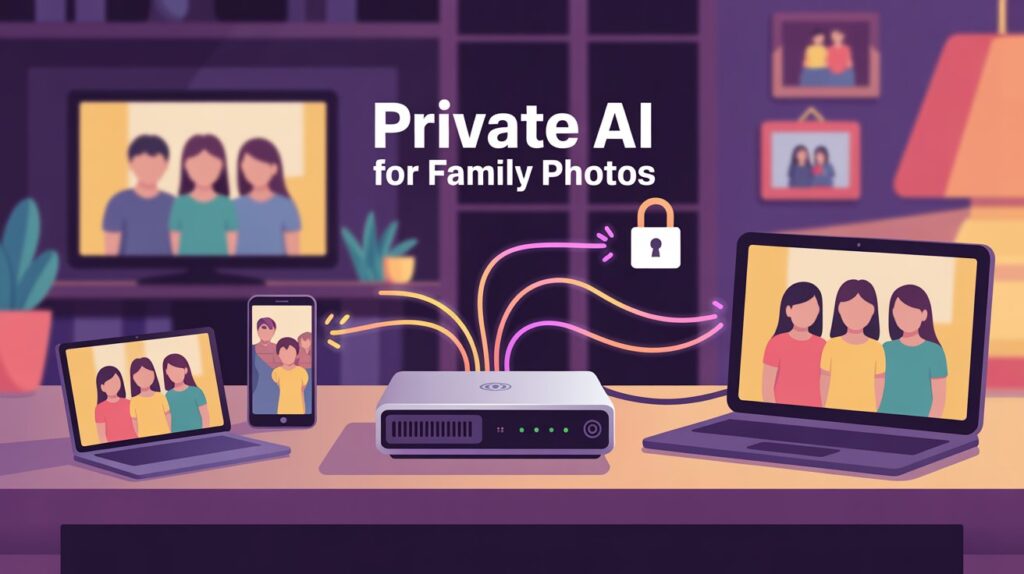
Your family’s photos aren’t just files. They’re moments—your child’s first steps, your parents smiling together at a reunion, memories from trips you’ll never take again. When these precious moments live only on Google Photos or iCloud, you’re trusting them to a company that shows you ads, analyses your data, and could theoretically delete them tomorrow if terms of service change.
Most families don’t realize what they’re trading away. With cloud services, you don’t actually own your photos—you’re renting storage space. The company decides whether it’s encrypted, how long they keep backups, and who might see metadata about where your photos were taken and when. It’s like storing family heirlooms in someone else’s vault and hoping they don’t rearrange things while you’re not looking.
The good news? You’ve got another option. A private AI photo server changes everything. It lives on hardware in your home, uses artificial intelligence to organize your photos, and you control every single aspect. Your photos stay yours. They don’t leave your house. Your kids grow up knowing their memories are truly private.
This guide walks you through building one, from picking hardware to teaching your family how to use it. By the end, you’ll understand that this isn’t complicated—it’s actually simpler than most cloud solutions, once you understand the basics.
What Is a Private AI Photo Server?
Let me explain what a private AI photo server does by comparing it to what you already know.
Regular cloud storage (like Dropbox or Google Drive) is like renting a folder in someone’s filing cabinet. You put files in, you take files out. Nothing fancy happens to them.
AI-powered cloud storage (like Google Photos) is like renting a folder, but now there’s a smart assistant who looks at everything you put in. The assistant tags photos, groups them by face, finds duplicates. But that assistant also notes that you were at the beach on July 3rd, and that’s data someone is keeping.
A private AI photo server is like buying your own filing cabinet for your home and hiring a personal assistant who works only for you. The assistant lives in your house. She organizes your photos using artificial intelligence. She learns who your family members are from just a few examples. She finds every photo where mom is smiling, or every shot from your favorite hiking spot. But she tells no one about this except you. She doesn’t leave the house. She doesn’t keep logs. She’s just there, making your memories easier to find.
That “assistant” is actually software running on a small computer in your closet or under your TV. Common options are Immich, Photoprism, or Nextcloud with its Photos app. They all do face recognition, automatic tagging, smart search, and duplicate detection—entirely on your hardware.
Here’s what happens technically: Photos upload from your phone to the server. The server stores them safely. Then, in the background (when you’re sleeping, usually), the AI analyzes each photo. It identifies faces without sending them anywhere. It detects objects—”this looks like a beach,” or “this has a dog in it.” It creates a searchable index so you can later type “mom beach” and instantly see every photo matching that description.
The beautiful part? Everything stays inside your home network. Your internet provider can’t see the photos. Your phone company can’t track your locations. There’s no “training AI on your data” happening in some data center.
Why Not Just Use Google Photos or iCloud?
This is the right question to ask because the honest answer is: sometimes, cloud makes sense. But most families don’t realize what they’re giving up.
Privacy is the main difference, but not in the way people usually think. It’s not that Google will maliciously steal photos. It’s that you have zero control over what happens to the metadata. Every photo you upload contains data about when it was taken, what coordinates it was taken at, what camera took it. Google uses this to build profiles—not for creepy reasons necessarily, but for business reasons. They know where your kids’ school is. They know where you vacation. They know your daily routine.
A private photo server means nobody—not even the software makers—knows this about you.
Subscription costs are sneaky with cloud services. Google Photos looks free until you need more than 15GB. Then it’s $9.99 per month ($120/year) for 2TB. If you have multiple family members backing up, you’re paying this multiple times. Most families don’t think about the long-term cost. Over 10 years, you could spend $1,200 just on one person’s photo storage.
With a private server, you buy hardware once—typically $200-$500 for a good setup—and your only ongoing cost is a few dollars a month for electricity. Over 10 years, you’ll spend around $100-$150 total on power. The math is overwhelming in favor of private servers.
Dependency and speed matter more than people realize. Cloud services require internet connection to work well. Browsing thousands of photos? That’s slower than looking through photos on a device on the same network as your server. Also, cloud services can have outages. I’ve had Google Photos be down for hours. Your private server is always there, always available, always at top speed.
Long-term data security is where the real risk hides. Cloud companies change their terms. They get hacked (not usually, but it happens). Your account could get compromised. With a private server at home using good backup practices, you control the redundancy and recovery.
The one place where cloud still wins? Automatic phone backup is easier. With cloud, every photo you take on your phone automatically syncs. With a private server, you need to set up your phone’s app to do the same thing—which takes ten minutes and then works automatically anyway.
For most families, especially those with elderly parents, kids, and people who value privacy, a private AI server is the better choice.
What Can a Private AI Photo Server Do?
Understanding the actual capabilities will help you decide if this is worth your effort.
Face recognition is where the magic happens. You spend maybe 30 minutes training the system on a few hundred photos, showing it “this is mom,” “this is grandpa,” “this is cousin Sarah.” After that, the software can find literally every photo where those people appear—in the background, from old photos you forgot about, on their worst hair day or best smile. Unlike cloud services that do this too, yours doesn’t share this data or use it to train anything.
Automatic photo tagging analyzes content. It recognizes “beach,” “sunset,” “birthday party,” “dog,” “indoor,” “snow.” Over time it gets better. You can search for “photos with cake” and immediately see every birthday photo, without you ever manually tagging them.
Smart search is the real-life superpower. You can type things like:
-
“mom at the beach 2023”
-
“photos with three or more people”
-
“pictures from this location”
-
“all photos where everyone’s smiling”
The system finds them in seconds.
Duplicate detection and cleanup saves you space and frustration. You know how your phone camera roll has 47 nearly-identical shots because you kept tapping the button? The software detects this and offers to remove duplicates, keeping the best version.
Timeline browsing shows your entire photo history organized by date. Flip through years visually. Relive memories chronologically. Zoom in on specific months or days.
Offline access means your family can browse photos from home without internet. Download specific albums to phones. Create shareable albums for specific people (grandparents get family album, but not photos of your teenager’s room).
Mobile app support means everyone in the family can upload from their phones. Automatic backup while on home WiFi is available on most solutions. The apps work smoothly on both iPhone and Android.
These are the core features. Want to do more? You can set up advanced stuff like geolocation mapping of where photos were taken, video support with thumbnails, collaborative albums, or calendar-based browsing. But the basics give you 95% of what most families actually need.
Hardware You’ll Need (Budget to Premium Options)
Option 1: Entry-Level Home Setup ($250-400)
This is your starter pack. Perfect if you’re testing the waters or have fewer than 20,000 photos.
What you need:
-
A mini PC with Intel N100 processor (₹22,000-₹25,000 / $265-300)
-
Comes with 16GB RAM and 512GB SSD usually
-
Incredibly power efficient (uses only 5-15 watts at idle)
-
Fanless or nearly silent operation
-
Can sit in a closet or drawer
-
Plus:
-
An external USB 3.1 hard drive for backups (₹3,500-₹6,000 / $40-80)
-
2TB is fine if you have fewer than 50,000 photos
-
4TB is better if you want room to grow
-
Total first-year cost: About ₹26,000-₹31,000 ($310-380)
Who this works for: Young families starting out, people with modest photo libraries, anyone unsure if they want to commit to this yet.
Tradeoff: Slower processing when analyzing large batches of photos. But day-to-day? You won’t notice.
Option 2: NAS-Based Family Server ($500-800)
This is the Goldilocks option for most families. Not too expensive, not overkill, built specifically for always-on home storage.
What you need:
-
A 2-bay or 4-bay NAS device
-
Synology DS224+ (2-bay): ₹18,000-₹25,000 / $220-300 (diskless)
-
Synology DS420+ (4-bay): ₹43,999 / $530 (diskless) in India
-
TERRAMASTER or QNAP alternatives exist at similar prices
-
Plus:
-
Hard drives (you choose the quantity)
-
2x2TB for 2-bay: ₹4,000-₹6,000 / $50-75 total
-
4x4TB for 4-bay: ₹12,000-₹16,000 / $145-195 total
-
Bigger means room to grow without buying more drives later
-
Total first-year cost: ₹28,000-₹60,000 ($330-730) depending on storage size
Why NAS?
-
Purpose-built for this job
-
Optimized for always-on reliability
-
Easy RAID setup means if one drive fails, your photos aren’t lost
-
Synology Photos app is professionally maintained
-
Can add more drives later without replacing the unit
-
Better multi-user features built-in
Who this works for: Families with 5+ people, folks who want it “set and forget,” anyone who already has a modest tech setup at home.
Tradeoff: More expensive upfront, but more reliable long-term.
Option 3: Enthusiast / Power User Setup ($1,200-2,000+)
Build a proper server if you’re tech-comfortable and want maximum flexibility.
What you need:
-
Mini PC or small form factor case with:
-
AMD Ryzen 5 or Intel i3-12100 processor
-
32-64GB RAM
-
Multiple NVMe SSD slots for fast storage
-
Plus:
-
Dedicated GPU (optional, makes face recognition 5-10x faster)
-
External RAID enclosure or internal 5+ bay setup
Total first-year cost: ₹80,000-₹1,50,000+ ($950-1,800+)
Who this works for: Tech enthusiasts, people who want to run other services too (home automation, game servers, etc.), professionals who work with very large photo libraries.
Tradeoff: Needs technical knowledge. Overkill for most families. More power consumption.
Choosing the Right Operating System
This matters less than you think, but here’s what to know.
Most NAS devices (Synology, QNAP, TerraMaster) come with their own operating system built-in. You buy it, plug it in, and it works. No choices needed. This is the easiest path for families.
If you’re using a mini PC or old laptop, you need to choose:
Linux-based systems (Ubuntu Server is popular) are the go-to for self-hosting. They’re free, stable, and don’t require a monitor or keyboard after setup. Most Docker containers (the software packages that run photo apps) are optimized for Linux. Learning Linux is not as hard as it sounds—nowadays you follow a step-by-step guide and it mostly works.
Docker containers have become the easiest way to run photo server software. Think of Docker as a shipping container—the photo server software comes pre-packaged with everything it needs to run. You don’t worry about installing dependencies or compatibility issues. You just run the container and it works.
Why stability matters more than performance:
Your photo server will run 24/7 (or close to it). It needs to be boring. Pick something that’s been stable for years. Ubuntu Server? Stable for 20+ years. Synology’s operating system? Built specifically to run forever. Avoid experimental systems or rolling-release Linux distributions unless you’re technically adventurous.
Best Open-Source AI Photo Software (Compared)
Here’s where to actually spend your research time, because your choice here shapes the user experience for your entire family.
| Feature | Immich | Photoprism | Nextcloud | Synology Photos |
|---|---|---|---|---|
| Face Recognition Accuracy | Very Good | Excellent | Good | Very Good |
| Mobile App (iPhone + Android) | Both included | Android only | Via Nextcloud app | Both included |
| Ease of Setup | Easy | Medium | Medium | Very Easy (NAS only) |
| Community Development | Active | Active | Very Active | Professional |
| Cost | Free (100%) | Free + optional €2-6/mo | Free | Free (with NAS) |
| Multi-user Support | Good | Limited | Excellent | Good |
| Video Support | Yes | Yes | Yes | Yes |
| Advanced Features (paid) | None | Premium themes, better search | Via apps | None needed |
| Best For | Most families | Power users, photographers | Large families, teams | Synology owners |
Immich is what I’d recommend for most families. It’s free, enthusiastically developed, works beautifully on both phones, and needs minimal setup. If you go with Option 1 (mini PC), Immich is your answer. The community is incredibly helpful if you get stuck. Apps exist for both iPhone and Android.
Photoprism is better if you care deeply about face recognition accuracy and RAW photo support. Photography enthusiasts prefer it. But it’s more expensive (optional subscription) and has limited multi-user support. The web interface is less modern than Immich, though still perfectly usable.
Nextcloud wins if you have 5+ family members and want sophisticated sharing, or if you want additional features beyond photos (file storage, calendars, contacts, chat). It’s heavier to run and slower with huge photo libraries unless you have good hardware. But it’s the most “complete” solution.
Synology Photos is best if you went with Option 2 (NAS). It’s professionally maintained, it’s free with the NAS, and it integrates perfectly. The tradeoff is you’re locked into Synology hardware.
Step-by-Step: Setting Up Your Private AI Photo Server
Step 1: Prepare Your Hardware
If you chose Option 1 or 3 (mini PC):
-
Unbox it, plug in power
-
Connect to your home network with Ethernet (WiFi is slower, less stable)
-
Note down the IP address (usually shown on your router, or check the mini PC manual)
If you chose Option 2 (NAS):
-
Take it out of the box
-
Install the hard drives into the bays (they usually just slide in and click)
-
Connect to power
-
Connect to your network with Ethernet
-
Wait 2 minutes for it to initialize
Storage planning basics:
-
5,000 photos = about 20-30GB (depends on camera quality)
-
20,000 photos = about 80-120GB
-
100,000 photos = about 400-600GB
-
Always buy more than you think you need (growth is fast)
Power and cooling:
-
Let the server have some space around it so it doesn’t overheat
-
Keep it plugged in at all times (don’t unplug/replug—that’s how data corruption happens)
-
A mini PC or NAS in a closet is perfectly fine
Step 2: Install the Operating System
For Synology or QNAP NAS: Nothing to do. It comes pre-installed. Skip to Step 3.
For a mini PC with Linux:
-
Download Ubuntu Server 24.04 LTS from ubuntu.com
-
Create a bootable USB drive (using Balena Etcher or similar tool)
-
Plug USB into mini PC, restart it, follow the installation prompts
-
This takes about 20 minutes and is mostly clicking “Next”
-
Once done, open a terminal (black box with text)
-
Run:
sudo apt update && sudo apt upgrade(this installs security updates) -
Restart:
sudo reboot
You now have a basic Linux server. Don’t worry if it looks boring—that’s good. Boring means stable.
Step 3: Install AI Photo Software
Using Docker (recommended for mini PC):
This is easier than it sounds. Docker is a tool that lets you run pre-packaged software without worrying about compatibility.
-
Install Docker:
sudo apt install docker.io docker-compose -
Create a folder:
mkdir -p ~/immich-app -
Create a file called
docker-compose.ymlin that folder with the official Immich configuration (copy from the Immich GitHub—it’s 50 lines of standard code) -
Run:
docker-compose up -d(the-dmeans “in the background”) -
Wait 2 minutes
-
Open a web browser, go to:
http://your-server-ip:2283 -
Create your admin account
Using pre-built setups (easiest for mini PC):
-
Use Portainer—it’s a visual tool for managing Docker
-
Or use Home Assistant’s Add-on Store if you have Home Assistant running
-
Or follow the specific photo software’s “Home Assistant” or “Docker” guide
For Synology/QNAP:
-
Go to the Package Center
-
Search for “Photos”
-
Click Install
-
Wait 5 minutes
-
Done
Step 4: Import Your Family Photos
This is where many people get stuck, so let’s be clear.
From Google Photos (if that’s where they currently are):
-
Go to Google Takeout (takeout.google.com)
-
Download your photos (this creates a big ZIP file, might be GB)
-
Extract it somewhere on your computer
-
Using your photo software’s web interface, there’s usually an “Import” or “Upload” button
-
Select your photo folder
-
Click upload (this might take a few hours depending on quantity and internet speed)
From individual phones:
-
Install the photo software’s mobile app
-
Configure it with your server’s address and login
-
Photos start uploading automatically
-
Or manually select photos and upload them
Organizing before AI indexing (important!):
-
Before you train the face recognition, sort your photos into rough categories
-
Don’t mix photos from 20 years ago with recent ones in the same upload
-
The AI learns better when starting with organized data
Step 5: Train AI for Face Recognition
This is the fun part.
-
Upload maybe 500-1,000 of your best photos first (not all 50,000)
-
Open the face recognition feature in your photo app
-
The software will show you faces it detected
-
You’ll see a face and either confirm it’s “Mom” or ignore it if it’s not
-
Spend 30-60 minutes doing this (boring but necessary)
-
After you’ve confirmed 50-100 photos of each person, the AI gets really good
-
Each time you add new photos, the software learns from them
Pro tip: Start with recent, clear photos of family members. Don’t start with old blurry photos from 2005. The AI learns from clear examples.
How to Secure Your Family Photos
Privacy is why you’re doing this, so let’s not mess it up.
Local encryption:
-
Your photos should be encrypted on the storage device itself
-
Most NAS devices have this built-in and it’s enabled by default
-
For mini PC with Linux, enable LUKS encryption during OS installation
-
This means if someone steals the hard drive, they can’t read the photos
User accounts:
-
Create accounts for each family member
-
Each person logs in with their own credentials
-
You can set permissions (Grandma can view but not delete; kids can upload but not modify shared albums)
-
This prevents accidental deletions and gives privacy
Access permissions for kids:
-
Give kids view-only access to family albums
-
They can upload photos from their phone but can’t delete the family archive
-
This grows responsibility without risk
Protecting against accidental deletion:
-
Your NAS likely has versioning/snapshot features built-in
-
This means if someone accidentally deletes a photo, you can restore from a snapshot from yesterday
-
Enable this feature (usually just one checkbox)
-
With Synology, this is called “Recycle Bin”—it’s free and powerful
Protecting the server itself:
-
Use a strong admin password (12+ characters, mix of letters/numbers/symbols)
-
Change the default login username
-
Enable “2-factor authentication” if available (adds security with a second verification step)
-
Keep the operating system updated (security patches)
Accessing Photos from Phones, TVs, and Tablets
The goal is easy access for your whole family, without compromising security.
From mobile phones on your home WiFi:
-
Install the photo app (Immich app, Synology Photos app, etc.)
-
Go to Settings → Server
-
Enter:
http://your-server-ip:2283(the port number might differ) -
Enter your login credentials
-
Photos appear instantly
-
Enable automatic photo upload from settings
From phones away from home (remote access—the fun part):
-
This is where most people get nervous, but it’s actually simple
-
Option A (easiest): Use Tailscale
-
Install Tailscale on your server and on each phone
-
It creates a secure tunnel between them (like a private tunnel just for you)
-
Your phone can access the server as if you’re on home WiFi
-
No port forwarding, no tech headaches
-
Free and incredibly secure
-
-
Option B (more technical): Use a VPN
-
Set up WireGuard or OpenVPN on your server
-
Download the VPN app on phones
-
Connect to your VPN, then access photos normally
-
Slightly more technical but also works great
-
-
Option C (advanced): Use a reverse proxy
-
This exposes your server to the internet with a secure connection
-
Requires a domain name and SSL certificate
-
More complex but doesn’t require a VPN app on phones
-
Only recommended if you’re already comfortable with networking
-
From smart TVs or tablets:
-
If your TV supports casting/AirPlay, you can cast albums
-
Or open a web browser on the TV and go to your server’s web address
-
Sit back, enjoy slideshow of family memories on the big screen
Backup Strategy: Never Lose Family Memories
This is the unsexy part that actually matters more than everything else.
The 3-2-1 rule is simple:
-
3 copies of your photos (original + 2 backups)
-
2 different types of storage (e.g., SSD + external HDD)
-
1 copy stored offsite (e.g., at a friend’s house, or encrypted cloud backup)
How to implement it:
Copy 1 (Original): All photos on your home server (the whole reason you’re reading this)
Copy 2 (Local backup): An external USB drive
-
Plug it in once a week
-
Use backup software to automatically copy new photos to it
-
Keep this drive somewhere safe but accessible
-
Cost: ₹3,500-₹6,000 ($40-80) for 4TB
Copy 3 (Offsite backup): One of these options:
-
Another external drive at a family member’s house (they plug it in monthly)
-
Encrypted cloud backup of just your indexed photo files (not the originals)
-
USB drive stored in a safe deposit box (updated quarterly)
Setting up automatic backups:
-
Synology NAS: Has built-in backup tools, can sync to external drives
-
Mini PC with Linux: Use Duplicacy or Restic (free backup tools, set to run nightly)
-
Mac/Windows: Use Time Machine or File History
The cold storage archive:
-
Once a year, copy your most important photos to an external drive
-
Store it somewhere cool and dry (closet, not attic)
-
This survives house fires, floods, etc.
-
Cost: one 2TB drive ($60) every few years
Cost of this entire backup setup:
-
External 4TB USB drive: $60 once
-
Offsite storage at friend’s house: free
-
Encrypted cloud backup (optional): $5-10/month
-
Total: $60-120 upfront, then minimal ongoing cost
This sounds like a lot, but remember: photos are memories. They’re irreplaceable. That’s worth $120 to protect.
Common Mistakes Families Make (And How to Avoid Them)
Mistake 1: Underestimating storage needs
-
You think you have 5,000 photos—but you actually have 5,000 on phone, 10,000 on old phone, 5,000 from kids’ devices
-
Suddenly it’s 20,000 photos you forgot about
-
Always buy more storage than you think
-
Or buy a 4-bay NAS so you can add drives later
Mistake 2: Ignoring backups
-
You set up the beautiful photo server
-
Life gets busy, you forget to plug in the backup drive
-
One day the main drive fails
-
All photos are gone
-
Fix: Automate backups so they happen without your intervention
Mistake 3: Overcomplicating the initial setup
-
You spend 6 months researching the perfect system
-
You never actually build it
-
Paralysis by analysis
-
Fix: Pick an option from this guide, order it today, follow the steps
Mistake 4: Poor labeling during face training
-
You upload 20 years of photos
-
Half are your mom, half are your mom’s sister
-
The AI gets confused
-
Fix: Start with 1-2 years of recent, well-organized photos. Expand later.
Mistake 5: Not telling the family about it
-
You set up the beautiful photo server in secret
-
Nobody knows it exists
-
Nobody uses it
-
Fix: Show each family member how to use it. Let them access their own photos.
Mistake 6: Mixing work and family photos
-
You store work photos, vacation photos, and kid photos all together
-
The system gets confused about permissions
-
Fix: Create separate user accounts for work/personal, or at least separate albums
Cost Breakdown: One-Time Setup vs Lifetime Value
Let’s be honest about the money.
Entry-Level Setup (Option 1)
-
Mini PC: ₹22,000-₹25,000 ($265-300)
-
External HDD for backup: ₹4,000 ($50)
-
Year 1 total: ₹26,000 ($310)
-
Electricity per year: ₹500 ($6)
-
10-year cost: ₹31,000 ($370)
NAS Setup (Option 2)
-
2-bay NAS: ₹25,000 ($300)
-
2 x 2TB drives: ₹5,000 ($60)
-
External drive for backup: ₹4,000 ($50)
-
Year 1 total: ₹34,000 ($410)
-
Electricity per year: ₹300 ($4) – NAS is incredibly efficient
-
10-year cost: ₹37,000 ($445)
Compare to Google One subscription
-
2TB plan: $9.99/month = $120/year
-
Family needs 3x that (phone + tablet + other): $360/year
-
10-year cost: ₹2,97,000 ($3,600)
Compare to iCloud for family
-
50GB free (fills up in months with family)
-
200GB: $3/month for one person = $36/year
-
Family of 4 needing space: $144/year
-
10-year cost: ₹1,18,000 ($1,440)
Long-term reality:
-
Private server: ~₹37,000-₹40,000 ($445-480) for 10 years
-
Google Photos family: ~₹2,97,000 ($3,600) for 10 years
-
Savings: ₹2,57,000 ($3,150) over a decade
-
Plus: You own your data from day one
After 2-3 years, your private server becomes financially cheaper than cloud subscriptions. After 5 years, you’ve saved thousands of dollars. After 10 years? You’ve paid off the hardware 6 times over compared to cloud costs.
Is a Private AI Photo Server Right for You?
Choose this option if:
-
You have 5+ family members who care about privacy
-
You take photos regularly (monthly or more)
-
You want to own your data forever
-
You’re comfortable with very basic technical setup (which this guide walks you through)
-
Your family has elementary-school-aged children or older (they can learn the system)
-
You have decent home internet (not satellite, not extremely slow)
Cloud services still make sense if:
-
You travel constantly and need photos accessible anywhere without setup
-
You only take 100-200 photos per year
-
You’re not concerned about privacy
-
You don’t want any technical responsibility (cloud handles everything)
-
You value the simplicity over cost savings
Hybrid approach (best of both worlds):
-
Store originals on your private server
-
Keep encrypted backup copies on cloud (Proton Drive, Mega, or similar end-to-end encrypted services)
-
This gives you privacy (originals are home-based) plus security (offsite backup exists)
-
Cost: Server (~$300-500 one-time) + cloud backup ($5-10/month)
Future of Family Photo Storage
Technology in 2026 is heading in exciting directions. Here’s what’s coming.
AI memory reconstruction:
Instead of just finding a photo, imagine asking, “Show me all the times we were happy together in 2022” and the AI synthesizes a video with music, transitions, and storytelling. We’re not quite there, but getting close.
Voice-based search:
“Show me pictures of Sarah at the pool” will work perfectly. Someday you’ll just say it aloud and photos appear. Voice interfaces are becoming more reliable for specific use cases like this.
Automatic family timelines:
The system will create “this time last year” memories, birthday compilations, year-in-review videos, all automatically. Zero effort required.
Digital legacy planning:
Services are emerging that let you plan what happens to your photos after you’re gone. Your server could automatically share with your kids when they turn 21, or transfer to an executor. Personal technology meeting end-of-life planning.
Better privacy-first AI:
More sophisticated face recognition and object detection, all without sending anything to the cloud. The technology to do this on-device is improving every month.
The hardware will get cheaper, quieter, more reliable. The software will get smarter and easier to use. The core idea—that you should control your own memories—is only going to become more mainstream.
Final Thoughts
Your family’s photos are your family’s story. They deserve to be treated as something precious, not as data to be profited from.
A private photo server isn’t complicated. It’s actually simpler than most people think once you follow a step-by-step guide. It costs less than cloud subscriptions within a few years. And it gives you something cloud services never will: complete peace of mind that your memories are truly yours.
Your kids will grow up in a house where their photos aren’t analyzed, categorized, and used to build advertising profiles. Where privacy isn’t a luxury feature but the default. Where family memories are stored with the same care you’d use for a photo album on your shelf.
Start small. Pick one of the options from this guide. Spend an afternoon setting it up. Show your family how to use it. Then forget about it for a year until you realize you’ve saved hundreds of dollars and your photos are still safe.
That’s the quiet victory of a private photo server. It doesn’t announce itself. It just works. It just protects. It just remembers.
Bonus
Setting This Up for Elderly Parents
Elderly parents often resist technology, but they love photos. Here’s how to do this for them.
The setup they need:
-
Use Nextcloud (it has the simplest interface for non-technical people)
-
Or Synology Photos (if they’re willing to use a NAS)
-
Not Immich—it requires a bit more fiddling
The access they need:
-
A tablet or laptop with easy-to-see icons
-
Large fonts
-
Pre-set login (they don’t enter passwords each time)
-
A folder on their device called “My Photos” where they can drag-and-drop
The training you need to do:
-
Show them one time how to open the app
-
Write down the exact steps
-
Make a printed guide with screenshots
-
Video call them after they’ve tried it once
-
Come back in person if they struggle (elderly people appreciate personal help)
What to avoid:
-
Don’t make them remember their password (use single sign-on or auto-login)
-
Don’t make them upload photos themselves (you do it, or set up automatic phone backup)
-
Don’t give them too many options (one simple album is better than 10)
-
Don’t use small text or complex navigation
What they’ll love:
-
Being able to see recent family photos from grandkids
-
Being able to show other elderly people their photos without fumbling with phones
-
The photos being safe (no risk of accidental deletion on their device)
Teaching Kids About Digital Privacy
This is equally important as setting up the technology.
For ages 6-10:
-
“Your photos are like a diary. Some things you want private, just for family.”
-
“We keep photos at home on our server instead of with a big company.”
-
“This way, nobody else gets to see your information.”
For ages 11-15:
-
“Digital privacy means controlling who sees your data and how it’s used.”
-
“Companies often collect photos and information to sell to advertisers.”
-
“You have the right to keep your life private.”
-
Show them how their phone tracks location; explain your photo server doesn’t
-
Have them help set up permissions for their accounts
For ages 16+:
-
Teach them about data ownership
-
Explain how cloud services monetize personal data
-
Let them manage their own photo backup
-
Discuss digital legacy (what happens to photos after death)
-
Show them how to recognize privacy-respecting vs data-mining services
Practical exercises:
-
Set up each kid with a user account and show them their permissions
-
Have them delete a photo and restore it from backup (teaches backup value)
-
Let them upload photos and tag people (teaches how AI learns)
-
Discuss what photos they’re comfortable sharing vs keeping private
Turning Your Photo Server Into a Family Memory Hub
Once the photos are organized, add these features.
Photo sharing albums:
-
Create specific albums: “2025 Vacations,” “Grandparent Visits,” “Birthday Parties”
-
Share them with selected family members
-
They can view on any device without needing passwords
Family timelines:
-
Display years of photos in chronological order
-
Let anyone browse by clicking on different months/years
-
Export as videos or slideshows for email
Memory notifications:
-
“3 years ago you were at the beach” notifications
-
Automated compilations of photos from this date in previous years
-
Kids love seeing how much they’ve grown
Collaborative albums:
-
Create an album where multiple family members upload to the same place
-
Great for family reunions or group events
-
Everyone can tag people as they recognize them
Calendar integration:
-
Sync photo server to family calendar
-
See photos from birthdays, anniversaries, events
-
Visual family history mapped to important dates
Story/timeline video creation:
-
Automatically create year-in-review videos
-
Birthday compilations
-
Vacation montages with music and transitions
-
Share these with grandparents who might not have tech skills to browse
The core idea: Your photo server becomes the family’s memory center, not just storage. It’s a tool for connection and remembrance, not just backup.
Start today. Your family’s memories deserve it.